Tools / CopyTrans Studio
About CopyTrans Studio
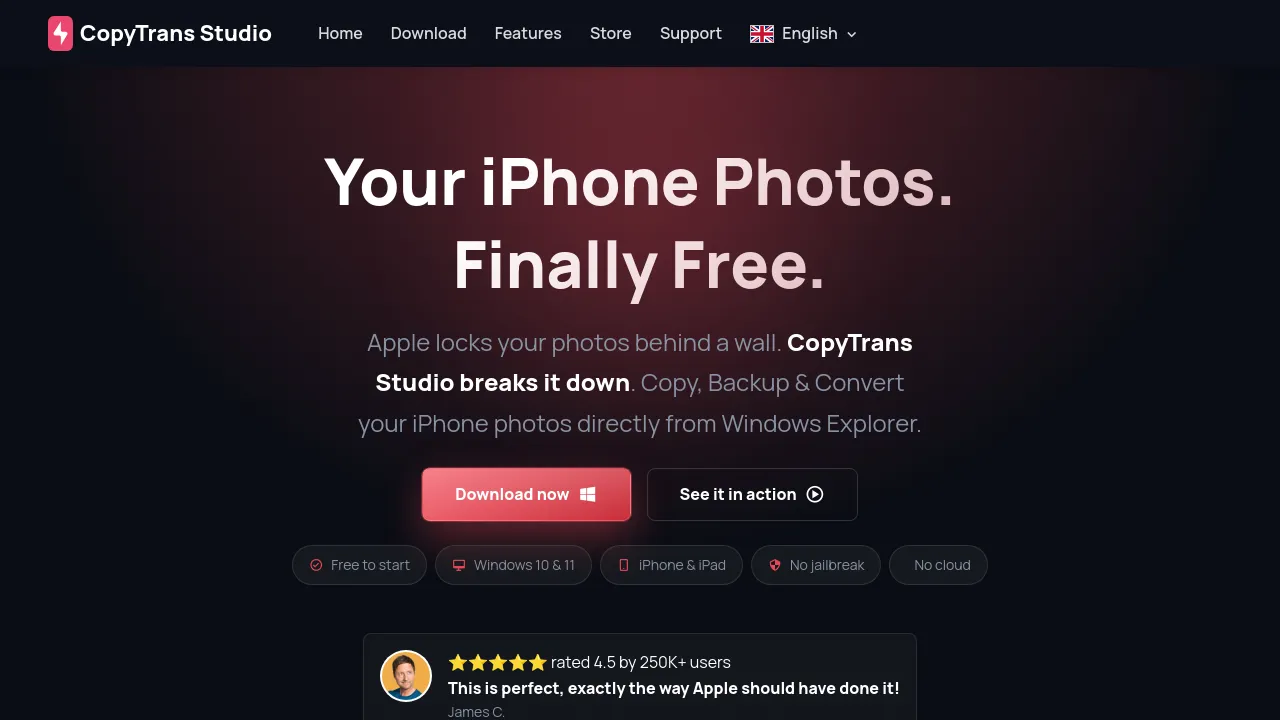
View iPhone photos as a folder in Windows Explorer. Copy albums, back up with one click, and convert HEIC to JPG — over Wi-Fi, no cable or cloud.
CopyTrans Studio is a Windows application that integrates your iPhone into Windows Explorer, letting you copy, back up, and convert iPhone photos directly from the file system you already use. Instead of forcing you through iTunes or a separate app window, it presents your iPhone's photos and albums as regular folders on your PC, so transferring pictures works with familiar drag & drop. It works over Wi-Fi or cable, requires no jailbreak, and doesn't rely on cloud storage.
The tool is aimed at Windows 10 and 11 users who want their iPhone photos accessible on their computer without friction. Beyond simple transfers, CopyTrans Studio handles one-click backups to a computer or external hard drive, automatic scheduled backups, and browsing by location, people, date taken, or metadata. It also includes a built-in Photo Viewer (also available separately as CopyTrans Viewer) that can display HEIC files and play Live Photos in motion on a PC, plus offline HEIC-to-JPG conversion with batch support.
According to the site, the app has been rated 4.5 stars by more than 250,000 users, and the company describes it as "the world's favorite iPhone to Windows photo transfer app." A free version is available to start, with the full feature set presumably requiring a paid license — the homepage doesn't detail pricing tiers.
Best for
- Windows users who want iPhone photos to appear as normal folders in Windows Explorer, without iTunes
- Anyone who needs regular, automatic backups of their iPhone camera roll to a PC or external hard drive
- People frustrated by HEIC files that Windows can't open — the built-in viewer and batch JPG converter handle this offline
- Users who want to browse their photo library by date, location, people, or metadata and create Smart Albums on the PC
- Households with multiple iPhones or iPads that need a no-cloud, no-jailbreak transfer workflow
- Photographers or archivists who want to preserve Live Photos and Apple-specific formats when moving files off a device
Frequently asked questions
Does CopyTrans Studio require a cable?
No. The site states it works over Wi-Fi, so you can transfer photos without plugging your iPhone in. A cable connection is presumably also supported, but the homepage doesn't go into detail about connection options.
Do I need to jailbreak my iPhone?
No. The homepage explicitly lists "no jailbreak" as a feature, and the tool works with standard iPhones and iPads.
Can it convert HEIC files to JPG?
Yes. CopyTrans Studio can convert HEIC to JPG offline, supports batch conversion with one click, and is integrated into Windows Explorer. It can also open and view HEIC files natively on Windows without converting them.
Does it work with Live Photos?
Yes. The built-in Photo Viewer can play Live Photos in motion on your PC, and the tool supports viewing Apple photo formats generally.
Is CopyTrans Studio free?
The site says it is "free to start," which suggests a free trial or limited free version with a paid upgrade. Exact pricing isn't shown on the homepage, so check the official site for current license details.
Which Windows versions are supported?
The homepage lists Windows 10 and 11 as supported. Older Windows versions aren't mentioned, so assume they aren't officially supported.
Alternatives
The candidate alternatives below come from different categories, so none directly replaces CopyTrans Studio's iPhone photo transfer function. They may still be useful depending on your broader needs:
- Supermemory — pick it instead if you need memory infrastructure for AI agents rather than personal photo management.
- ArangoDB — a unified multi-model database; relevant if you're building your own app to store and search photo metadata at scale.
- Wordware — an AI assistant that learns your context; a different kind of productivity tool if your goal is task automation rather than photo backup.
- DocDriven — a visual API design tool for development teams; unrelated to photo transfer but useful if you're building software around media APIs.
- Slyce — hosting for lightweight open-source web apps; consider it if you want to self-host your own photo or media tools.
- Apprikator — for building your own mobile app without coding, if none of the off-the-shelf transfer tools fit your workflow.
- Blynk — a low-code IoT platform; only relevant if your photos are part of a connected-device project.
- WIIN.io — online forms and application management for teams; a different problem domain entirely.

Similar to CopyTrans Studio
New tools, once a week.
One weekly email with curated tools and founder insights. Unsubscribe anytime. Check our privacy policy.